TLDR I just want to know what I need to turn on
Introduction
In-game settings
PS5 system settings
Common misconceptions
Troubleshooting
What does my monitor actually for VRR to work on PS5?
I'm having issues with controllers disconnecting
Conclusion
TLDR
You can have a great tournament experience playing Street Fighter 6 on a PS5 and you don't even have to spend $1000 on a monitor. In fact, I'd argue that PS5s create a consistent tournament experience, as opposed to PCs with varying specs. Here's what you need.
- 120hz monitor with VRR
- Input Delay Reduction: On
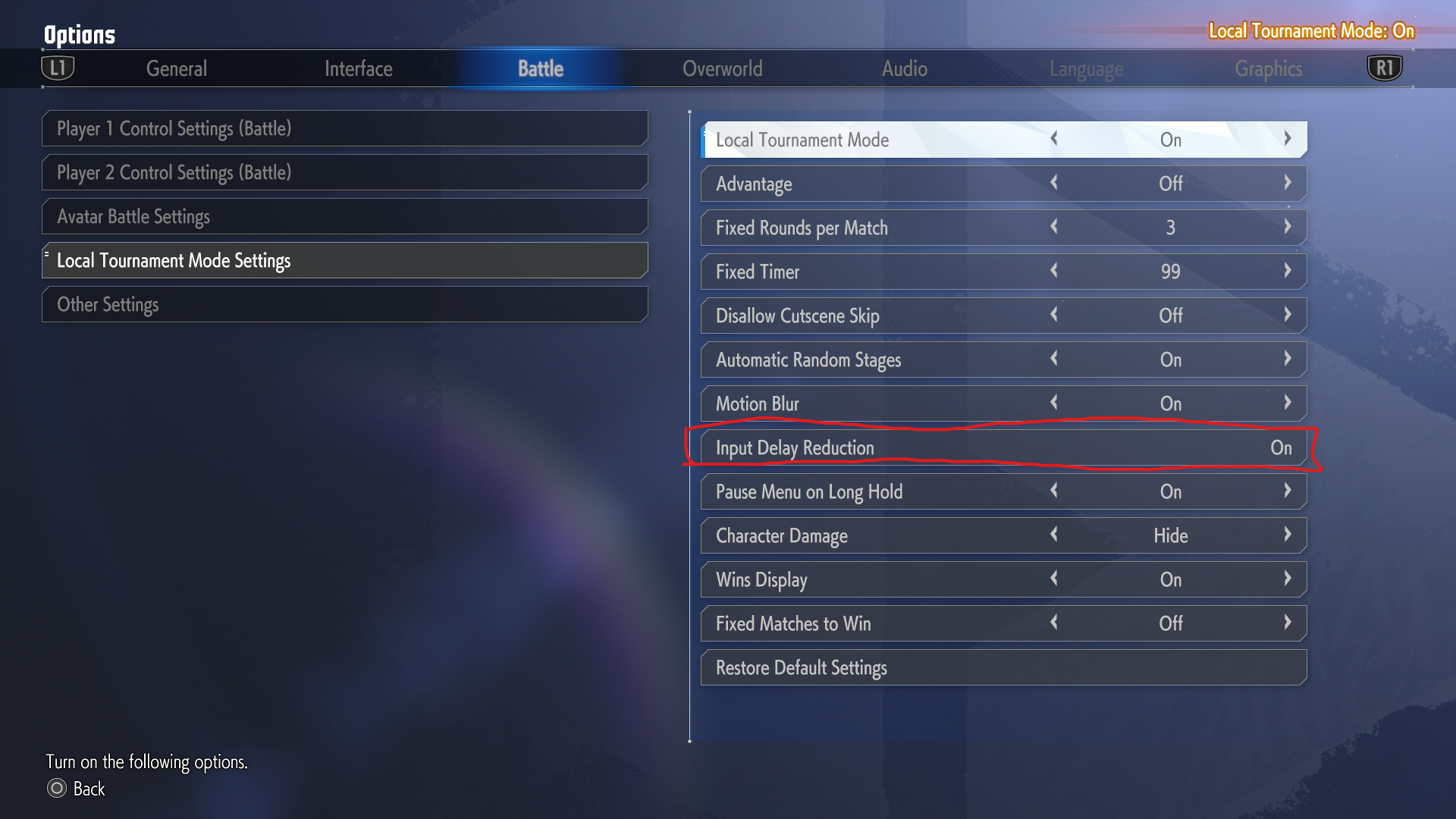
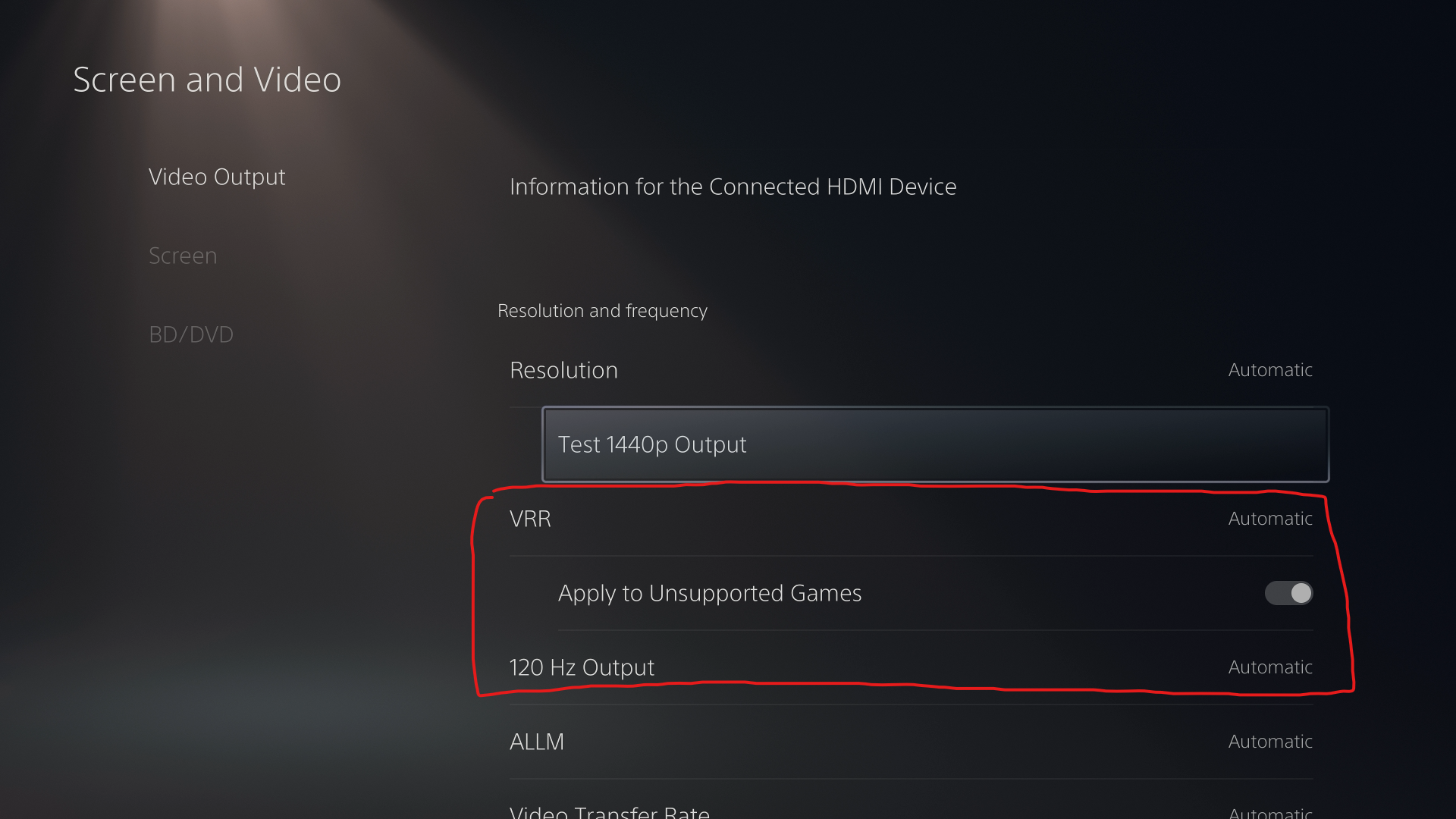
- PS5 Screen and Video Settings:
- VRR: Automatic
- Apply to Unsupported Games: On
- 120hz Output: Automatic
If you think you have a monitor that should work, but the PS5 doesn't let you turn on VRR, keep reading.
- PS5 is barely worse than PC in terms of input latency
- PS5s running hot do NOT affect input latency
Introduction
Hi, I'm fancy badger and I help run SF6 tournaments in the greater Boston area. I am a tournament organizer but before that I am a player, and I want to help everyone run better events. I want to go to events and play my favorite game on a setup that doesn't feel laggy.
Over the past couple years we've done a lot of experimentation and research to try to create a competitive environment at our SF6 local that runs weekly at Game Underground in Waltham, MA.
We are a grassroots FGC community -- a lot of our effort is driven by the want to keep costs down while maintaining competitive integrity.
Even now, several years into the life of the game, I feel like there is still a lot of confusion around how to get PS5 setups with minimal input latency, so this page is a tutorial on how to set up your PS5s. A lot of this information is already known and available but I hope to collect the information here in a permanent, easy to find place.
The next two sections will show you the settings you should be trying to set for a great tournament experience. If you are a tournament organizer, at bare minimum, read the sections highlighted in green to get the least lag you can on your PS5 setups. If you are a player competing I also recommend you also check these settings before you begin your match. If you encounter any issues matching the settings below, check out the Troubleshooting section.
In Game Settings
Input Delay Reduction
Located in two different places.
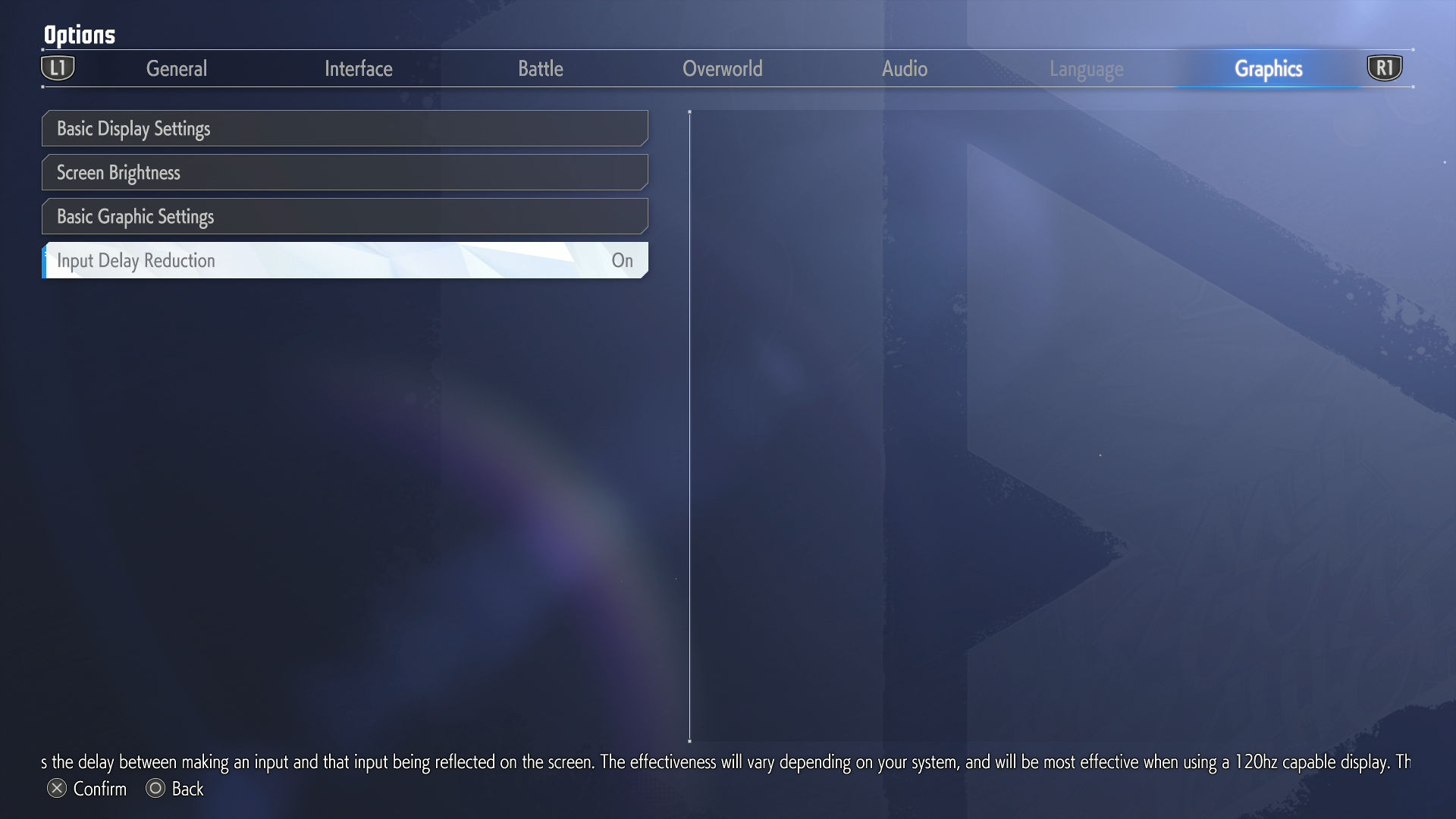
I recommend using Tournament Mode instead if you are running a tournament.
Notable Settings
- Input Delay Reduction: On
- Pause Menu on Long Hold: On
- Random stage select: Automatic
- Random stages: All stages except for Training Stage
-
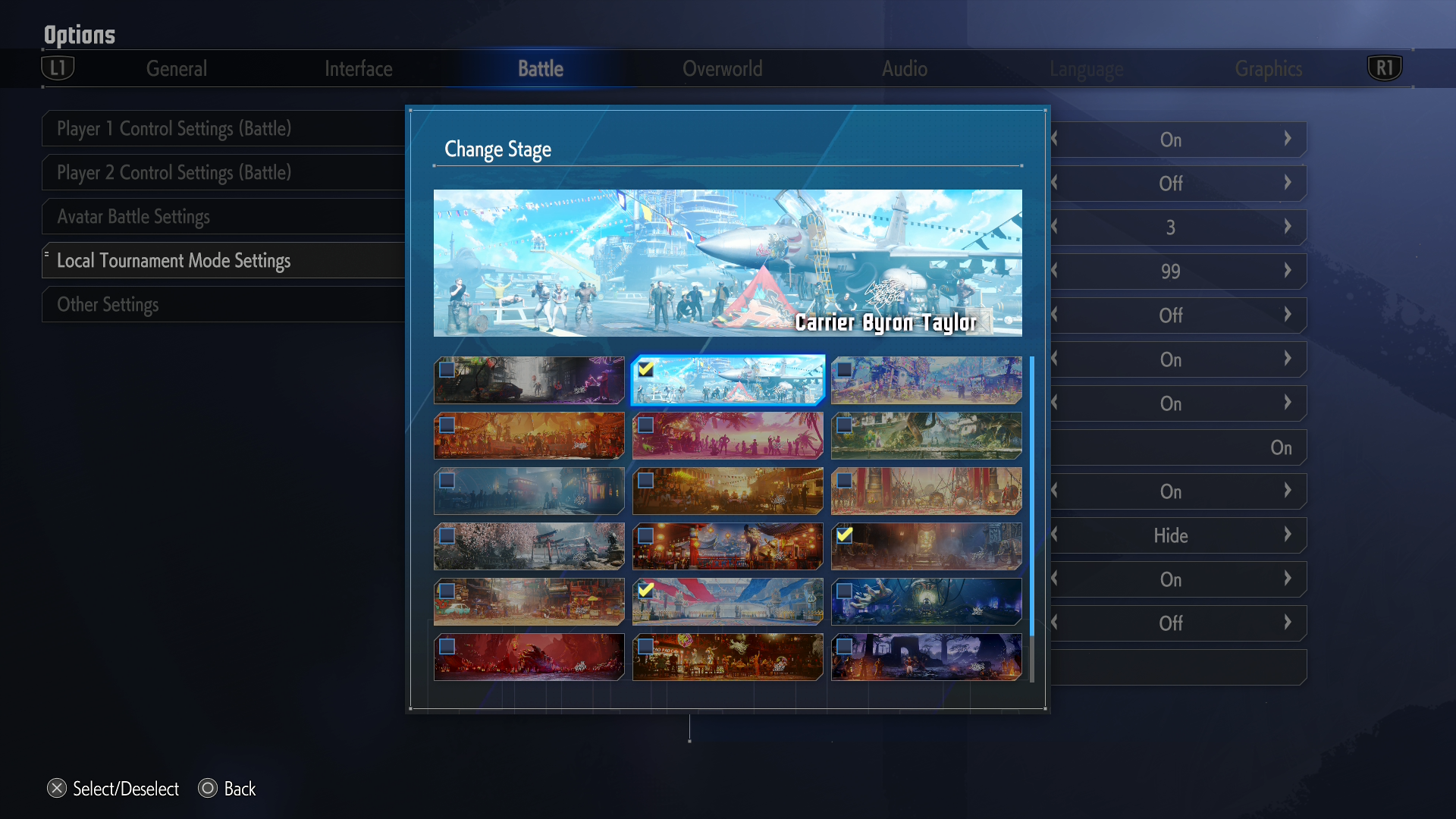
If you do NOT have a 120hz VRR monitor, select only the following stages:
- Carrier Byron Taylor (Guile's Stage)
- Dhalsimer Temple (Dhalsim's Stage)
- Suval'hal Arena (JP's Stage)
-
CPT events include the following settings, but you can set them according to preference:
- Motion Blur: On
- Damage Display Settings: No display
PS5 System Settings
Screen and Video -> Video Output
- VRR: Automatic
- Apply to Unsupported Games: On
- 120hz Output: Automatic
After setting these, and starting up the game, you can return to here and check Current Video Output. It should read as follows:
- 48-120 VRR
Notifications
- Allow Pop-Up Notifications: Off
Accessories -> General -> Advanced Settings
- Turn Off Bluetooth
- So that no one can interrupt a match by accident with a wireless controller.
Common Misconceptions
PS5s overheating make the game run poorly
Contrary to popular belief, this is false. The PS5 is designed to keep your gameplay consistent regardless of conditions. It will turn off if it is truly overheating. Check out the tests that @fubarduck did here. Also see the bottom of this article to read more about overheating PS5s and how they are NOT causing input latency.
Playing on PS5 is WAY worse than playing on PC
Yes, if you are playing on a super top of the line PC, there is a little bit less latency, but not enough that a human could reliably notice it. On an average PC, the difference is at most maybe a quarter of a frame if any. The @fubarduck article goes way more into depth but there is a chart here with most of the takeaways.
I need to buy a super expensive monitor to play in optimal conditions
It's a bit confusing what monitors will let you enable 120hz VRR on PS5, but you don't need to buy a super expensive monitor.
Street Fighter 6 runs at 60fps, so I don't need more than a 60hz monitor
This is a myth, and @fubarduck also has a great explanation in this article if you want to read more about it. TLDR, higher monitor refresh rate gives you more chances to render a frame on time or earlier.
Troubleshooting
My monitor says it supports 120hz VRR but the PS5 won't let me enable it
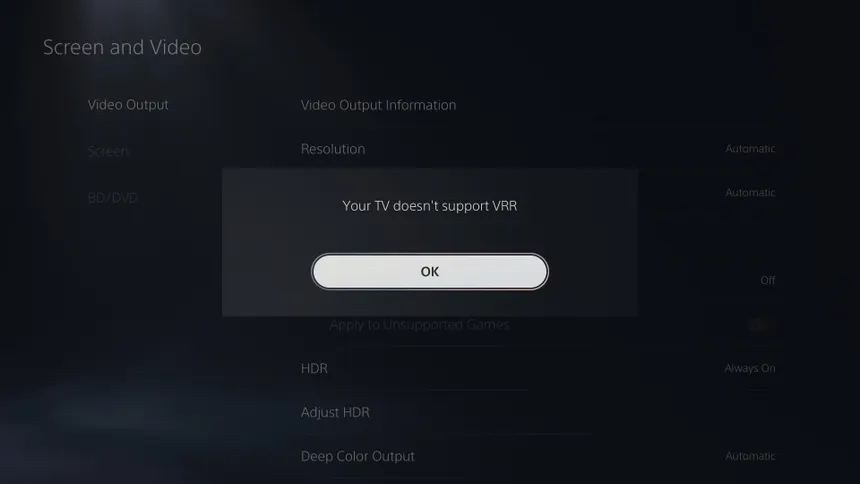
There can be a number of reasons but here are the things you should try first:
- You need to turn on Adaptive Sync in your monitor settings. A lot of monitors support VRR but don't have it turned on by default. Look around in the monitor settings. On some monitors it's not even in the "screen" settings and might be hidden in a different menu.
- Your monitor has a separate setting that is stopping you from turning on Adaptive Sync in the monitor menus. One example is "Dynamic Accuracy" or "DyAc" that some Zowie/Benq monitors have. On these monitors, if DyAc is turned on, you cannot turn on Adaptive Sync.
- Your monitor may be 120+hz and support VRR, but it does not actually support VRR on PS5. Read the monitors section for a more in depth explanation as well as how to tell if a monitor will work.
Monitors
What does the monitor actually need to enable VRR on PS5?
This topic was very confusing to me when I first started investigating, and there are some misconceptions I encountered along the way:
Misconception 1: You need HDMI 2.1 for VRR to work on PS5.
- While monitors with HDMI 2.1 ports are more likely to work on PS5, this is not entirely true. The official Playstation announcement for VRR on PS5 even states that you need HDMI 2.1! But this is only true if you are playing at resolutions greater than 1920x1080.
Misconception 2: Monitors that support VRR on PS5 are expensive.
- Most monitors that have HDMI 2.1 ports have those ports to support high refresh rates for native resolutions greater than 1080p. As a result, you may think you need to buy an expensive monitor that has a native resolution of 1440p or 4k. However, HDMI 2.0 supports enough bandwidth for 1080p120hz VRR, so you can get a cheaper monitor as long as the monitor supports VRR on PS5.
Misconception 3: You need Ultra High Speed HDMI cables to enable VRR on PS5
- We came to this conclusion early on but I now know this is not true. You can use a cheaper, High Speed HDMI cable, plugged into an HDMI 2.0 port as long as your monitor supports the correct type of VRR for PS5.
In the HDMI 2.1 specification, VRR was officially added as an HDMI standard, described as "HDMI Forum VRR". Basically, it specifies a handshake between source and display to ensure compatibility without requiring proprietary hardware -- in contrast to AMD FreeSync or Nvidia G-Sync.
PS5 only supports HDMI Forum VRR, so what you actually need is a monitor that supports this. The best way I've found to figure out if a monitor will support VRR on PS5 is to look closely at the user manual. You're looking for a feature either named HDMI Forum VRR, or some times HDMI VRR. Simply reading the listing for the monitor on a website will often NOT get you this information.
Generally, monitors with HDMI 2.1 ports will support HDMI Forum VRR, since HDMI 2.1 is when HDMI Forum VRR was added to the standard. So if you buy an expensive monitor with an HDMI 2.1 port, there's a good chance it will work. My understanding is that you're still at the mercy of the monitor manufacturer though, so the safest bet is to ensure that the monitor supports the HDMI VRR standard.
The monitors we have settled on using for our local is the MSI PRO MP 273L E14. It's only $95 and you can run SF6 on PS5 with 120hz VRR enabled. You'll notice something about the monitor if you read the listing:
- It has an HDMI 2.0 port, not HDMI 2.1
- It says it supports AMD FreeSync, but this actually is meaningless for us
If you actually go to MSI's website and click on specifications, you can find the datasheet for this monitor. This doesn't even mention anything about HDMI VRR!
If you head to support and find the actual manual for the monitor, and scroll all way down to page 18, you'll finally find this:

Our TO @LuckyD actually bought one of these monitors while he was at Micro Center on a whim to test it out. We'd been in a multi-month attempt to find affordable monitors that let us play SF6 without lag and at the time all we knew was that HDMI 2.1 monitors tended to work but were also expensive. With the low price tag he grabbed one just to test out and to our surprise it worked. I didn't find out about HDMI Forum VRR until many months later.
I'm having issues with controllers disconnecting
I want to preface that this section is the section I'm least sure about. If you know about any of the stuff I wrote below and I've made any mistakes, please let me know.
If you're like us, you've gone through some of these trials and tribulations of running tournaments on PS5:
- The first year of SF6 no one showing up knew their controllers wouldn't work unless they had a Brook adapter, so you scrambled to pass the few adapters you had around the venue
- It's 2026, and most people have adapters or PS5 compatible controllers. They might have a Brook board inside, or maybe they are built with GP-2040ce and some sort of passthrough adapter
- People get frustrated, people aren't careful and the USB ports on your PS5s have seen a lot of wear and tear over the years. We have some PS5s that don't even have any working USB A ports left.
This is all to say that you probably have USB hubs for your PS5s, and a lot of people are using adapters with non-official controllers. And that you may have encountered controllers disconnecting for unknown reasons. We noticed over the years that some controller/adapter combos would work fine on some USB hubs but not on others. We'd get different types of disconnections. Some times a direction or button would get stuck, but the controller would still be connected. Some times the controller wouldn't connect at all.
I wrote Brook with some of my observations and asked them if they had any guidance. Here is their response:
After discussing your observations with our R&D team, we confirmed that the issues you experienced (button freezes, disconnects, authentication failures) are tied directly to the internal architecture of the USB Hubs rather than the physical plug style or PS5 port type:
1. Opt for USB 3.1+ or Hubs explicitly featuring Multi-TT (MTT) - Why: Standard or budget USB 2.0/3.0 hubs use Single-TT (STT), where all downstream ports share a single Transaction Translator. When multiple players connect their arcade sticks simultaneously, Full-Speed HID data packets collide and queue up in the hub, leading to authentication packet timeouts or input drops. - Recommendation: Choose USB 3.1 hubs or dedicated USB 2.0/3.0 hubs that explicitly specify Multi-TT (MTT), ensuring each port gets an isolated data conversion pipe.
2. Use Self-Powered Hubs (With an External Power Adapter) - Why: Arcade sticks featuring OLED displays, custom LEDs, or converters(Like 2040 series) draw significant peak current upon startup and authentication. Bus-powered hubs rely solely on the PS5's port, which can lead to momentary voltage drops when handling multiple sticks. - Recommendation: Always select hubs with a dedicated AC power adapter for tournament setups to guarantee stable 5V delivery.
I did some other research and I came to a few conclusions:
- I am not sure that the MTT vs STT thing is a big concern. Controllers authenticate once at the beginning, and then they should be sending pretty small packets of data.
- Power is the main concern, so a powered hub would be nice, but those are more expensive.
- USB A ports provide 5V on VBUS. It's a dumb, fixed supply of power.
- USB C ports do some sort of handshake, and it's possible that this can cause interruption in power if something re-triggers the negotiation.
- The USB A ports on a standard PS5 are not the same front and rear. The front ones are USB 2.0 and provide 500mA and the back ones are USB 3.1 and provide 900mA.
My practical takeaway from this research is that you should plug a USB A hub into a rear USB port just in case. Ideally you'd just plug two controllers straight into the ports in the back but putting something in between your players and your PS5 is ideal.
Conclusion
Hopefully this was helpful. If you're trying to outfit a local for competitive SF6 play and need help, feel free to reach out to fancy_badger on discord. I am also compiling a list of hardware on a budget that I will list here at a later time.
Thanks for reading.